RStudio or VS Code
Nikita Gusarov
It’s highly probable, that the days to come will be marked with a lot of activity on this blog. Some of the last discussions pushed me forward to start publishing on several topics I’ve considered as not worth of it. Among the most interesting points comes the discussion of the R related ecosystem. This topic regroups both the discussion about the FOS Software, as well as the R language itself.
R ecosystem
The typical R ecosystem is rather specific. If we take a look at what is usually done at universities (personally, I may speak from my experience at UGA and Grenoble-INP), the most common choice for the workflow with R is based around RStudio. This choice is quite well justified in the learning context. Imagine an audience of 10 to 150 students taking a course of Econometrics or Statistics. Typically, their curriculum is already rather tight and there is absolutely no chances to insert an entire course of R software into it. This means, that the teacher should somehow familiarise the students with the R, alongside the main course (ex: Statistics), without possibility to resolve individual problems with workspace configuration. As you can see, there is a particular need for the unified, easy to install and configure working environment for R. The RStudio is nearly the perfect choice in this case, although it does not come bundled with R and requires a standalone R installation. This results in several broken installs and some minor problems among a small part of students. Later, those students become accustomed to the RStudio environment and sometimes do not even suspect about the existence of other ways to work with R.
RStudio has some other advantages, many functions and utilities are bundled into the IDE itself, making it simpler to interact with R for casual user.
You want to knit a pdf document using Rmarkdown?
Just click through a little interactive dialog, it’s all you need.
A lot of “"essential” packages come preinstalled with RStudio as well: tidyr, ggplot2, rmarkdown and many more, one cannot imagine using RStudio functionality without them.
The intuitive, visually oriented layout simplifies the interactions with R backend and makes it somewhat easier to perform statistical analysis (one usually uses R for statistics, isn’t it true?).
However, in many cases it leads to incorrect understanding of R functionality and capabilities.
The distance it places among the user and backend is tremendous and can not be simply neglected.
In the last two years I’ve encountered quite a lot of people, who did not understand that it is possible to work with R outside of RStudio or that there are ways to optimise the workflow.
For many of them it meant switching over to Python, SAS or other languages, which offered some features not evident in R.
As one can see, the RStudio offers great advantages, but constrains the understanding of the R language in itself. And if for some of people, working with R, the choice of RStudio as IDE is a deliberate and weighted action, for many others it is an imposed crippling decision.
What are the alternatives?
For someone with the slightest background in informatics and some minor understanding of the R language, it is evident, that it’s totally possible to interact with R in any way one desires. R is a rather simple high-level interpreted programming language, which makes it extremely easy to work with: there is no need for compilation (or precompilation as in the case of Julia) for it to function. A single instance of open terminal with R running is sufficient for interaction, but it is rarely sufficient to do actual work. Till now, I’ve never seen anyone working directly with RScripts or R-terminal alone. These are useful additions, but typically the scripts require quite a lot of testing prior to be ready for production.
This leads us to situation, where for work with R one needs:
- A terminal instance to execute the code and observe the output
- A text editor, which will allow to write and alter the code if needed
- Some graphics support, to output graphics and plots (keep in mind, that there exist solutions to output graphics in the command line)
- File manager to access the file tree and allow to work with several files at the same time, or at least to switch between them
Optionally, we can imagine some more bonus functionalities, which can typically be accessed through a command line:
- Git (or other version control system) integration
- SSH, Docker and remote execution
- Some shortcuts support for often used R function (ex:
rmarkdown::render()is one of the most used ones by me) - No unnecessary functionality (for hose who find the RStudio interface cluttered and who does not want to have any other language specific functionalities on their workspace)
Evidently, nearly any good enough IDE (meaning, not some language specific IDE) has all the features listed above. Among them we can name:
- VS Code
- VS Codium
- Atom
- Emacs
- (N)vi(m)^[The eternal joke about the vi text editor, which can potentially be transformed into fully functional IDE.]
- and many more …
For this time we are going to focus on the first and the simplest one of them. Probably latter I’ll write about my workflow organisation with vim and CLI, but it wil be latter.
VS Code (VS Codium) as and IDE for R
Personally, I’ve spent quite a lot of time working in VS Code during my Master years and some time during my PhD. Later, I’ve decided to switch for some more interesting tools, but it does not mean that VS Code is something bad. Frankly speaking, I believe that VS Code is a better tool for working with R, than RStudio itself. During my first year of Master in Applied Informatics and Statistics for Social Sciences (MIASHS) we have bee introduced to several software solutions for statistical analysis, among which were R, SAS, STATA, Julia and Python. For R, as I’ve described in the beginning of this post, the choice have fallen on the RStudio IDE and I’ve spent some time struggling to make it function as I wanted. However, knowing that we are going to work with other languages, I’ve made a deliberate decision to deviate towards a more flexible IDE, suitable for several languages at the same time. Hence, the choice of VS Code was rather self explanatory, because the uptake of the Microsoft based platform and the abundance of community support for different languages made it nearly ideal solution in terms of flexibility.
Before proceeding with a more detailed discussion of various features of the VS Code, there is a point to make. One should clearly distinguish the Microsoft curated VS Code IDE and the debloated community made fork, which is VS Codium. The first one can be installed from the Microsoft website (it is accessible through the package manager on most of the GNU/Linux distributions). The second one is available from the project’s website or through the package managers on some GNU/Linux distributions, although it requires some tweaks to access the VS Code oriented extensions. Once correctly configured the two are nearly undistiguishable, while VS Codium has the advantage of being stripped of Microsoft’s telemetry services and proprietary binaries.
Main setup
Now comes the times to switch over to discussion of the IDE configuration for R based workflow. Here I’ll describe the steps I’ve gone through as well as the extensions I’ve installed wen configuring it for my needs. Evidently, this setup may not suite everyone and one should be careful when copying it “as-is”.
-
First of all, to work with R one needs to have a functional installation of R, as well as any other packages or supplementary bundles (ex: R-Tools). I’ll not linger on this step, because it is completely identical to typical R installation, identical to the one described in RStudio documentation.
-
Even though the VS Code basic setup allows us to have an editor alongside a terminal instance, it would be preferable to install specific packages to simplify the interaction with R. In VS Code those additional functionalities may be added by means of extensions installation. Depending on what functionality we seek we may find several packages, which support R language, but it’s always better to stick with the most popular and advanced one:
R Extensionby Yuki Ueda.
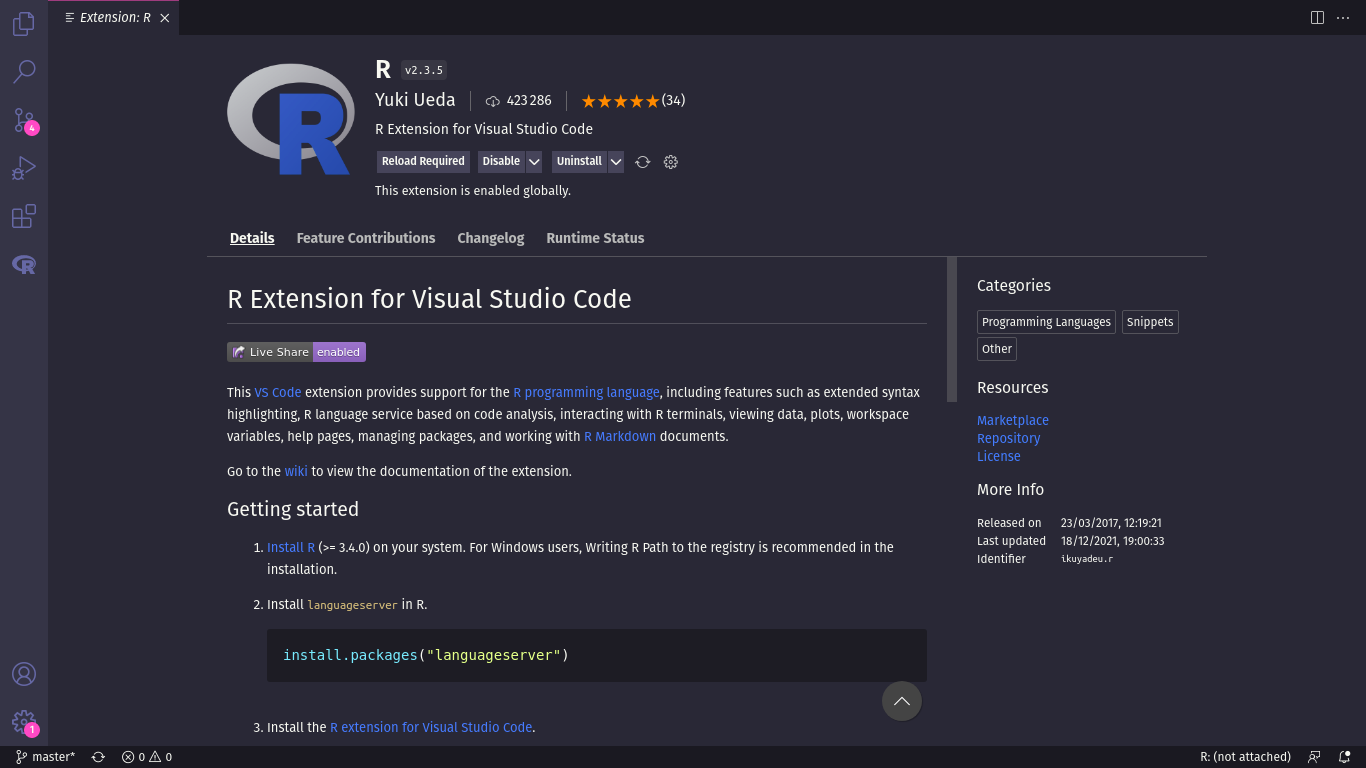
- Afterwards it remains to configure the extension by pointing it to the correct R executable, which may be especially useful in case one has several installation of R.
As well as to specify any specific executables, such as
radianif one wants to use them.
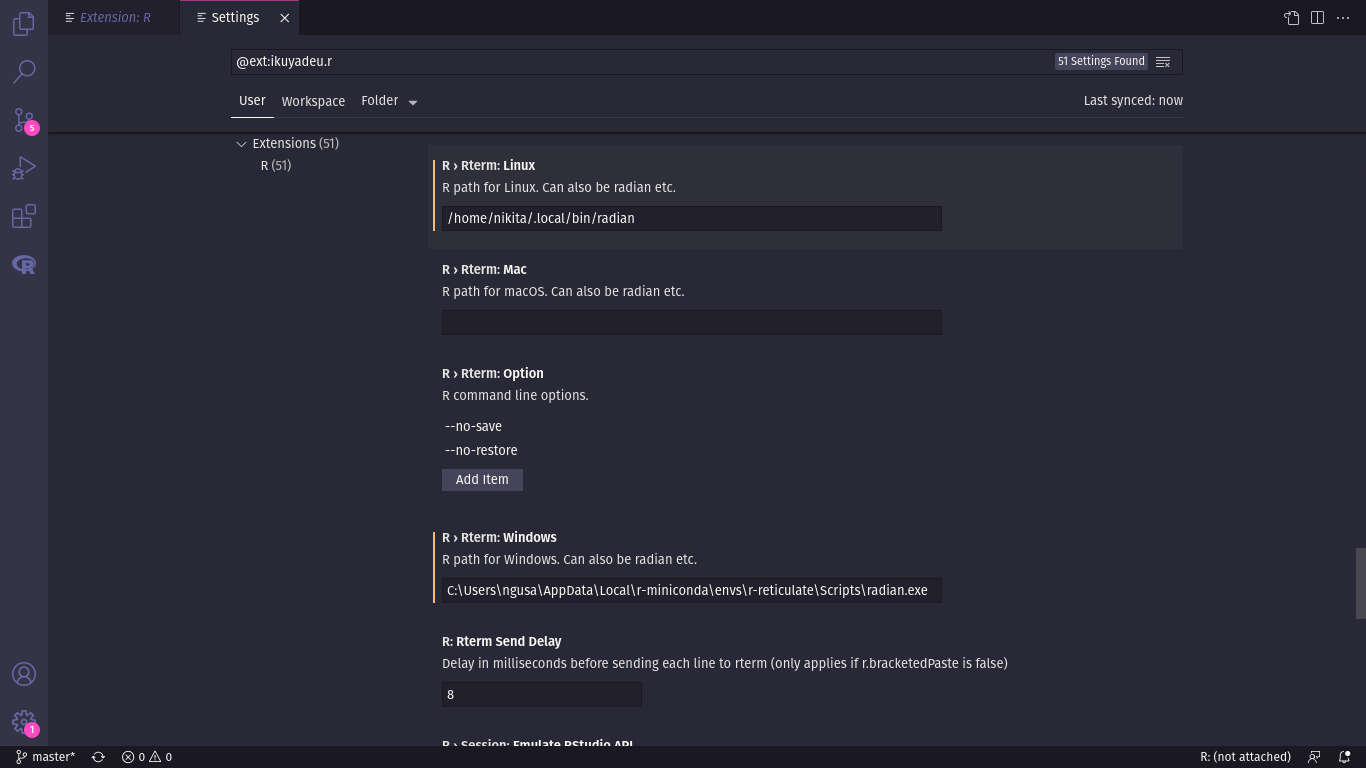
- The last point is optional, and will serve only to those who use some sort of version control system in their projects. VS Code comes with integrated support for version control, which is far more rich, than the one offered with RStudio. It is equally possible to extend the Git/SVN integration with some more extensions to simplify the version control overview.
Tips and tricks
As one can see, the configuration is rather straightforward and simple, although I’ll still prefer to give some useful tips on how to make out the most of such setup. One of the main advantages of using simple text editor and terminal instead of RStudio is the reduced resources usage. I still remember how one of my coworkers complained about the impossibility to open RStudio, while working on large datasets, which by default are visualised in the integrated preview window. However, one may want to have such visualisation functionality at hand, instead of using separate R rendered panes or terminal preview of the datasets. The same applies to the plots visualisation, which is typically done in separate R rendered windows. Although still experimental, this functionality is already present in the VS Code R extension and can be activated in the extension’s configuration.
This allows to preview R objects and visualise output inside VS Code panes, instead of separate R generated windows.
Another useful feature is the autocompletion and intellisence.
Even though I prefer to learn by memory the key functions I typically use, it may be useful for other to have such functionality activated in their setup.
This may be achieved through a R LSP client, connecting to R-language server running on the background and fetching the possible combinations to autocomplete.
Except of the functionality activation in extension’s settings it is equally important to install the required R libraries: languageserver.
Finally, one can be interested with the code styling, and block editing, which are not available with the default R CLI.
For this purpose it’s possible to activate the radian support in settings, which will involve a separate installation and configuration of Python environment with radian and pygments (the last one serves for more elaborate syntax highlighting within terminal).
It’s equally possible to add in-terminal autocompletion with jedi Python library.
And more …
Finally we arrive to the point, where the main advantage of the VS Code starts playing its’ role: the flexibility. Contrary to RStudio, which previously had solid support only for the R language, VS Code is much more functional. There is possibility to bundle R with LaTeX, Python, C, C++, HTML, CSS, Java and any other languages you wish. It suffices only to add the required extensions via VS Code market-space and it’s done! Here are example of some of the packages I used on nigh daily basis:
-
LaTeXsupport withLaTeX Workshopby James Yu -
Spelling correction with
Code Spell Checkerby Street Side Software -
Markdown syntax highlighting with
Markdown All in One -
Within VS Code pdf preview with
VSCode-pdfby tomoki1207 -
Version Control help and additional functionality with
GitLens — Git superchargedby GitKraken
I believe that for now it’s more than sufficient as a description of one of the alternatives to RStudio, which will probably help you to love R as language.