ThinkPad X220 and PWM
Nikita Gusarov
Continuing the posts’ streak, today we are going to see how to eliminate the PWM flickering problem that arises on some of the ThinkPad laptops of early 2010-th. The proposed solution is specific for the laptops equipped with Intel GPU’s (Intel i915 only) running Linux.
This summer I’ve acquired a second laptop, an old ThinkPad X220, to have something more portable at hand in complement to my main ThinkPad T430. Today I’ve decided to finally patch my X220, because with time the eye strain has become more and more noticeable. Both of the machines encounter the same screen flickering issue even after the upgrade of their screens to the IPS versions. And even though I already corrected the problem on my T430 about 2 years ago, I’ve completely forgot how to do it by now. After some search on the Internet, I’ve found the solution and this post serves mostly to keep it by hand, just in case.
The PWM and eye strain
What is the PWM? The PWM is an abbreviation for Pulse Width Modulation, a technique used to control the screen backlight in many laptops. A more scientific definition, adopted from R.D. Christ, R.L. WernliSr., “The ROV Manual (Second Edition)”, 2014 states:
Pulse width modulation (PWM) is a modulation technique that generates variable-width pulses to represent the amplitude of an analog input signal. The output switching transistor is on more of the time for a high-amplitude signal and off more of the time for a low-amplitude signal. The digital nature (fully on or off) of the PWM circuit is less costly to fabricate than an analog circuit that does not drift over time.
Obviously, this definition is rather specific for other domain - Remotely Operated Vehicles (ROV) design. Nevertheless, it quite well explains the general principles behind the PWM.
Another explanation may be found on the Arch Wiki page. This one explains particularly well how exactly PWM misconfiguration impacts the eyestrain.
Laptops with LED backlight are known to have screen flicker sometimes. This is because the most efficient way of controlling LED backlight brightness is by turning the LED’s on and off very quickly varying the amount of time they are on. However, the frequency of the switching, so-called PWM (pulse-width modulation) frequency, may not be high enough for the eye to perceive it as a single brightness and instead see flickering. This causes some people to have symptoms such as headaches and eyestrain.
Te simplest way to test the presence of flickering is to observe the screen with white background through a digital camera. For this you may use a smartphone, for example. Even though it’s quite hard to see on the photo (a short video would have been more demonstrative) you can observe the horizontal lines on the image:
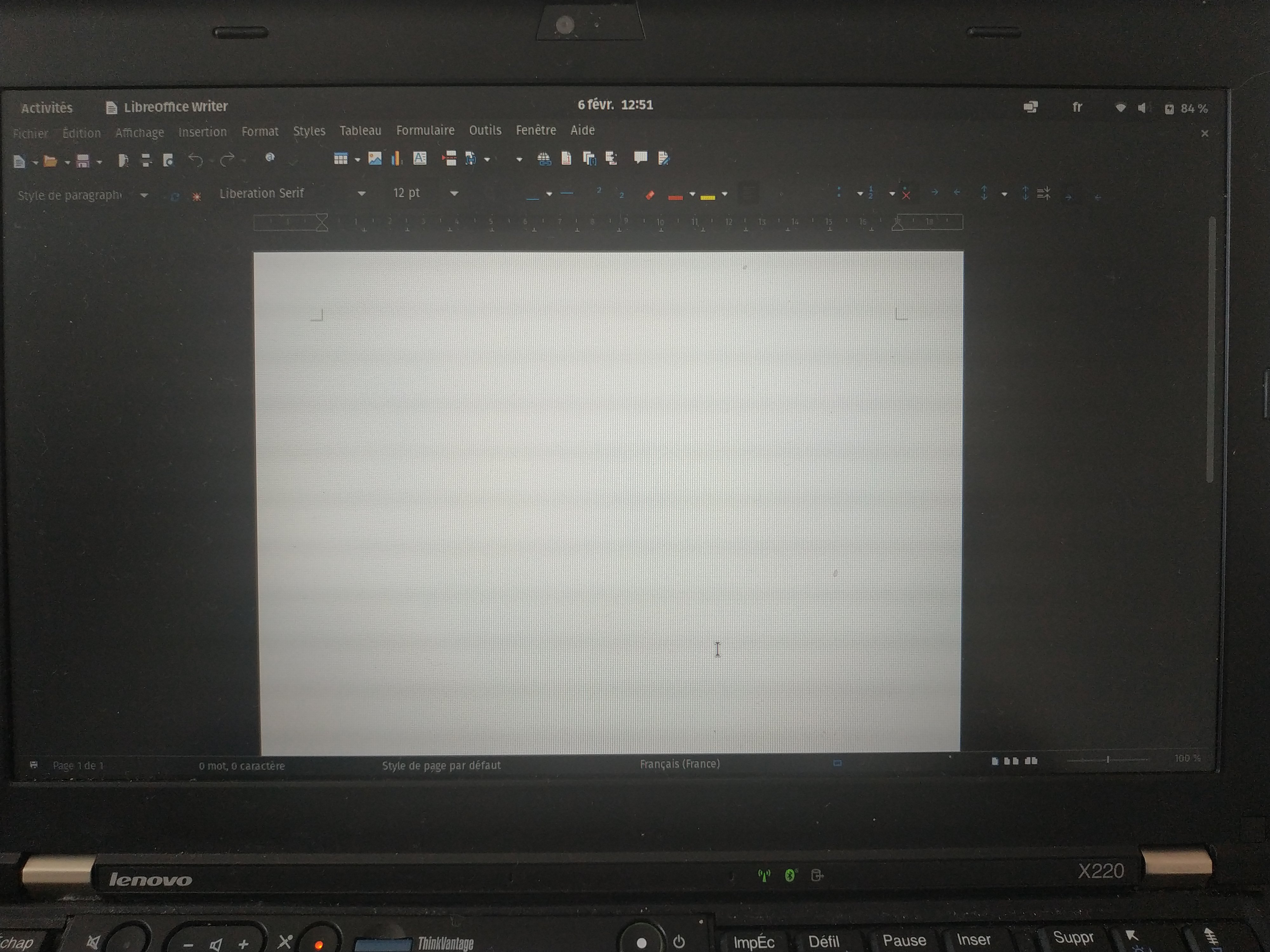
These are the signs of flickering issues. This lines are not easily distinguished by human eye, but they still impact our performance and can lead to severe head aches with time.
Eliminating the flickering
The usage of Intel i915 GPU allows to manipulate the PWM frequency in order to eliminate flickering.
As explained in different guides, the period of the PWM stream^[
Actually it’s the PWM stream in PCH display raw clocks multiplied by 128, to be more precise.
As described in this blogpost.
] (which is inverse to frequency) is stored in 2 higher bytes of 0xC8254 register
(or 0x61254 for Intel GM45 chipset users).
Evidently, if we can modify the register values (read and write them), we can eliminate the flickering through frequency adjustment.
For this we’ll need the intel-gpu-tools package, available in most official repositories (at least for Debian and Arch it’s available).
To read the current value from register we should run:
sudo intel_reg read 0xC8254
Which should produce us something like:
BLC_PWM_PCH_CTL2 (0x000c8254): 0x06100000 (freq 1552, cycle 0)
Keep in mind, that the value to be altered is kept in the four upper bytes.
To get the frequency estimates we will equally need the value of 0xC6204 register.
This one holds the PCH display raw clocks and the value is PCH frequency in MHz.
For example, on my X220 the value is:
PCH_RAWCLK_FREQ (0x000c6204): 0x0000007d (FDL_TP1 timer 0.5us, FDL_TP2 timer 1.5us, freq 125)
Which corresponds to PCH frequency of 125 MHz. Resulting PWM frequency in Hz can be calculated by the formula:
$$ f_{PWM} = ( reg_{0xC6204} \times 1 000 000 ) / 128 / reg_{0xC8254 [7..4]} $$
In my default case:
$$ f_{PWM} = ( 125 \times 1 000 000 ) / 128 / 1552 = 629,228 Hz $$
From what I’ve seen on internet, the values suggested to bypass the flickering vary from 200 to 800 Hz. Let’s start our tests with 600 Hz:
$$ \frac{125 \times 1 000 000}{128} / 600 = 1627 $$
In hexadecimal notation we obtain 065B, which should be written to the four upper bytes of the 0xC8254 register.
Meaning we should run:
sudo intel_reg write 0xC8254 0x065B0000
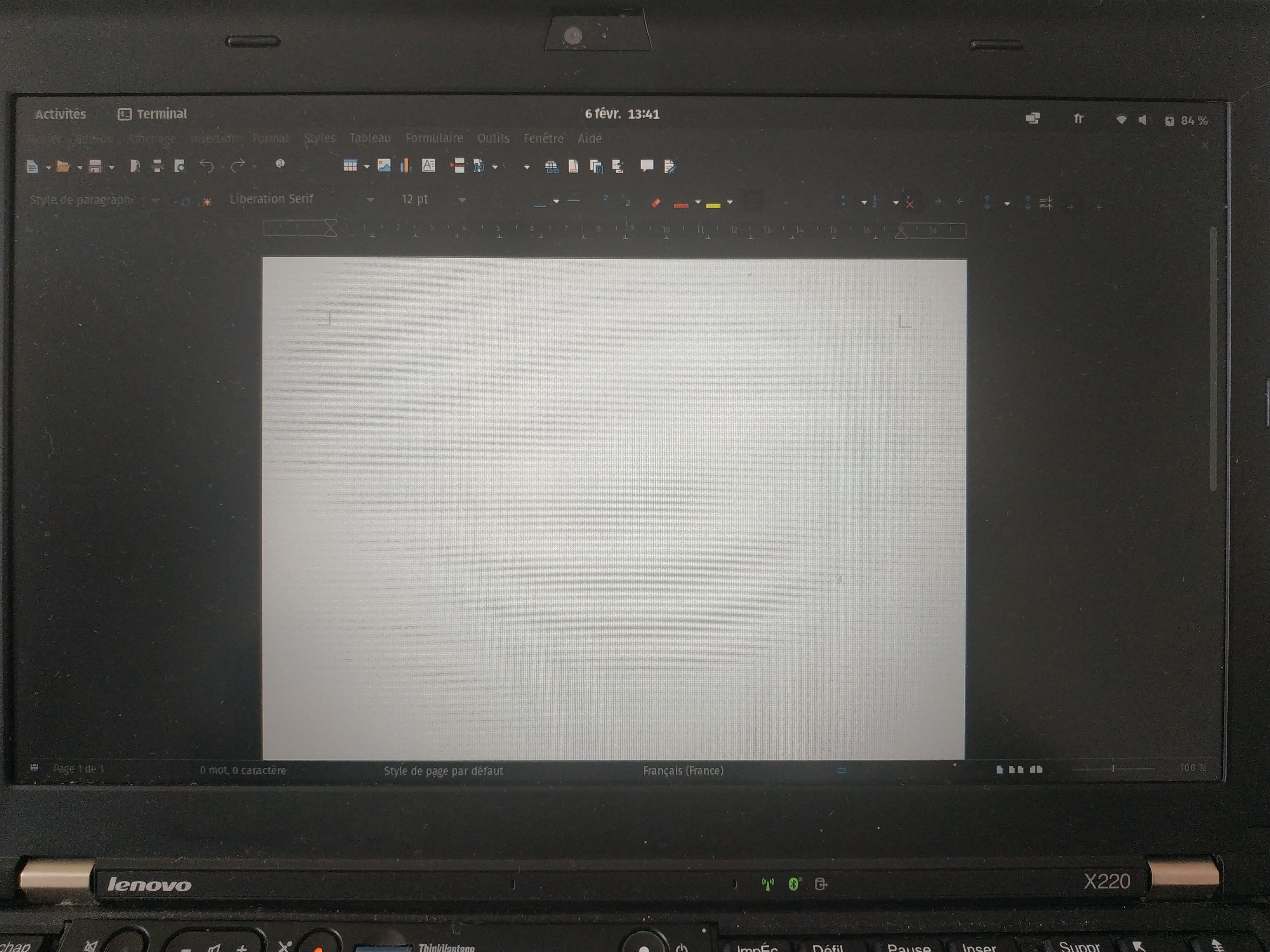
And voila, you can see no more flickering strips on the screen!
Persistent solution to flickering
Unfortunately for us the solution described above is not permanent.
Every time the power is cycled to the GPU or the backlight the value of the 0xC8254 register will be reset to the default.
Obviously this is absolutely inconvenient, meaning one will have to repeat the procedure each time the screen is turned off, laptop suspended, and so on.
A good solution to this is to write a separate script, which will be updating the register value automatically, without user intervention.
And there even exists a working solution for this!
So no need to write a custom command from scratch and better use a tested and more reliable version proposed in intelpwm-udev package.
The project is available on GitHub.
This toolset is available in AUR repositories for Arch based distributions.
If you are using a different Linux flavour, you’ll have to install it manually (the developers offer an Ansible-playbook installation script).
Because I run Pop!_OS on both of my machines, I’ll have to follow the Ansible path.
Obviously, we can do everything by hand without usage of a separate automation toolset, but it looks rather interesting and I’ll probably be using it later for other projects.
First of all, we should install ansible if none is present on the system (it is available on most of the systems from the official repositories):
sudo apt install ansible
Then we should clone the the intelpwm-udev project onto our target machine:
git clone https://github.com/edio/intelpwm-udev.git && cd intelpwm-udev
The next step includes the installation itself (mind that the Ansible script should be executed from the project’s root folder):
sudo ansible-playbook install/ansible/install.yaml
Afterwards, it remains to specify the desired frequency in the dedicated configuration file at /etc/intelpwm.conf.
We reset it to the previously tested 600 Hz:
FREQ=600
And that’s it. Afterwards you may test whether the script works by putting your device to sleep or restarting it.